

Living in a hyper-connected world presents incredible opportunities, yet navigating the modern tech ecosystem can quickly feel overwhelming. From managing endless streams of email notifications to ensuring personal information remains secure across multiple online platforms, the digital landscape demands intentionality. Adopting smart digital life habits is no longer reserved for tech enthusiasts or software engineers; it is a vital skill set for anyone looking to reclaim time, lower daily stress, and safeguard personal data.
Transitioning from a passive device user to an intentional digital practitioner requires a foundational shift in how daily tools are configured and utilized. By implementing strategic digital life hacks, beginners can eliminate administrative friction, protect sensitive accounts from modern cyber threats, and create an environment where technology serves personal productivity rather than distracting from it. This comprehensive blueprint outlines the core strategies, actionable workflows, and security practices needed to master your digital ecosystem efficiently.
Building a Streamlined and Automated Digital Workspace
A cluttered digital workspace degrades focus just as severely as a messy physical desk. When files are scattered across random desktop folders and downloads remain unorganized, retrieving critical documents consumes valuable mental bandwidth. Establishing a clean, logical desktop architecture sets the tone for an efficient digital routine.
A. Standardize Naming Conventions for Instant Retrieval
Loose, vague file names like “Document1.docx” or “Scan_1002.pdf” create unnecessary friction during searches. Implement a universal naming format across all local storage and cloud drives. A reliable formula is YYYY-MM-DD_Category_ProjectName_Version. For example, labeling an invoice as 2026-08-05_Finance_TaxReturn_v1 ensures that sorting by name automatically arranges files chronologically, making manual browsing and automated search queries effortless.
B. Implement a Single Destination Ingest System
Instead of saving downloads directly to your desktop or various temporary folders, route every single incoming file to a single “Ingest” or “Inbox” folder. At the end of each workday or week, clear this folder by either filing items into dedicated project directories or deleting unnecessary files. This prevents desktop clutter from accumulating and keeps active workspaces visually clear.
C. Master Universal System Shortcuts for Speed
Relying entirely on a mouse or trackpad slows down navigation significantly. Learning cross-platform operating system shortcuts accelerates everyday operations. Key inputs to memorize include:
-
Operating System File Management: Command/Ctrl + Shift + N to instantly generate a new folder.
-
Text and Window Controls: Alt + Tab (Windows) or Command + Tab (Mac) to cycle between open software without touching the cursor.
-
Quick Search Utilities: Command + Space (Mac Spotlight) or Windows Key + S to launch programs, calculate math equations, or locate files in milliseconds.
D. Automate Continuous Cloud Backup Procedures
Data loss caused by hardware failure, device theft, or accidental deletion can be devastating. Relying on manual flash drive transfers is inefficient and prone to human error. Configure continuous background cloud backups using trustworthy platforms. Ensure that local directories such as Documents, Desktop, and Pictures are mirrored in real time to secure offsite storage solutions.
Essential Cybersecurity and Privacy Controls
Security forms the foundation of a sustainable digital lifestyle. As web applications and remote services become increasingly central to daily activities, security vulnerabilities pose serious risks to personal privacy and financial well-being. Modern security does not require hyper-complex technical knowledge; instead, it relies on strict hygiene habits and automated privacy layers.
A. Deploy a Dedicated Password Management Platform
Reusing identical passwords across multiple services is one of the primary vectors for identity theft. Human memory cannot retain dozens of unique, 16-character randomized passwords. Installing a standalone password manager eliminates this vulnerability completely.
-
Generate unique, high-entropy passwords for every single service automatically.
-
Autofill credentials securely across mobile browsers and desktop applications.
-
Store sensitive notes, digital identities, and secure recovery codes within an encrypted vault.
B. Enforce Multi-Factor Authentication Across Key Accounts
Password security alone is insufficient against sophisticated phishing attempts or credential stuffing attacks. Multi-factor authentication (MFA) adds an imperative extra line of defense.
-
Prioritize authenticator applications or physical security keys over SMS-based verification, as text messages remain vulnerable to SIM-swapping exploits.
-
Activate MFA immediately on high-value targets including primary email accounts, cloud storage, banking portals, and social media profiles.
-
Store offline recovery backup keys in a secure, encrypted digital location or a locked physical drawer.
C. Audit and Restrict Application Permissions Regularly
Mobile applications and desktop utilities frequently request access to system components that exceed their functional scope. A simple flashlight application or note-taking utility rarely requires access to contacts, location history, or background microphone access.
-
Review platform permission manager settings quarterly.
-
Toggle location permissions from “Always Allow” to “Only While Using App” for navigation tools.
-
Revoke camera, microphone, and contact permissions for apps that do not directly require them for core functions.
D. Maintain Software Integrity via Automated Updating
Outdated operating systems, web browsers, and third-party applications contain known security vulnerabilities actively targeted by automated exploits. Enabling automatic updates ensures system patches are applied immediately upon release, eliminating security holes before they can be leveraged against your device.
Workflow Optimization and Notification Control
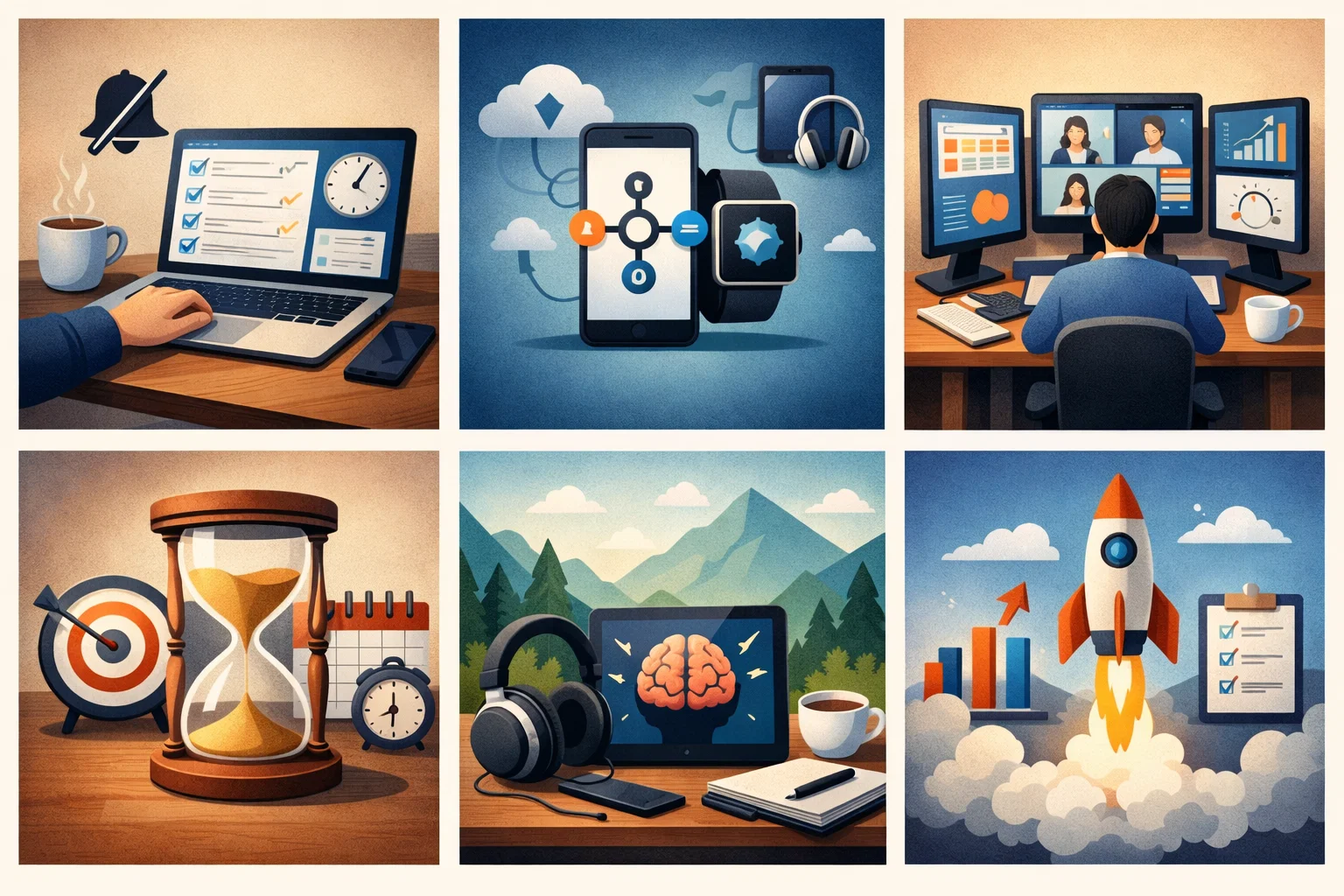
The modern digital ecosystem is engineered to capture attention through continuous alerts, badge icons, and pop-up banners. Unmanaged notifications break deep focus, elevate anxiety, and reduce daily cognitive output. Transforming your digital life requires taking proactive control over how and when information reaches you.
A. Implement the Inbox Zero Strategy for Communication
An email inbox should function as a temporary transit station rather than a permanent storage warehouse. Allowing thousands of unread emails to accumulate generates mental clutter and increases the likelihood of missing critical messages.
-
Archive messages immediately once their actionable items have been completed.
-
Utilize automated filters to route promotional newsletters, order receipts, and system notifications into dedicated secondary folders away from your main inbox.
-
Unsubscribe aggressively from mailing lists using built-in unsubscribe headers rather than simply deleting unwanted recurring emails.
B. Optimize Browser Workflows with Targeted Extensions
Web browsers serve as the primary window to digital productivity. Unoptimized browser setups drain device battery, consume excess system memory, and expose users to intrusive marketing tracking scripts.
-
Install reputable script and ad-blocking tools to accelerate webpage loading speeds and enhance reading privacy.
-
Utilize tab-grouping utilities or session managers to prevent dozens of open tabs from overwhelming browser capacity and mental focus.
-
Deploy read-it-later utilities to store lengthy web articles for dedicated offline reading sessions, keeping active browser windows clear of distraction.
C. Establish Strict Notification Protocols
Default system settings prioritize app publishers over user attention. Reclaiming focus requires systematically muting non-essential channels.
-
Disable all lock-screen banners, sound alerts, and pop-ups for non-human interactions (such as news alerts, app updates, and game notifications).
-
Configure dedicated focus modes that dynamically mute work communications during off-hours and silence personal applications during dedicated deep work windows.
-
Convert high-priority communications (such as team messages or urgent emails) to delivery summaries delivered at predetermined times during the day.
D. Leverage Cross-Platform Synchronization
Friction occurs when information captured on a mobile phone is inaccessible on a primary computer. Utilizing native cross-platform ecosystems allows seamless transitions between environments.
-
Use cloud-synced clipboard features to copy text or images on a mobile device and paste them directly onto a desktop screen.
-
Synchronize browser bookmarks, search histories, and saved tabs across all personal hardware to ensure seamless session continuity regardless of physical location.
Mindful Digital Wellness and Ergonomic Optimization
Adopting smart technology habits extends beyond software speed and efficiency; it directly impacts physical health, sleep quality, and psychological well-being. A truly optimized digital lifestyle integrates clear boundaries between screen exposure and real-world downtime.
A. Enforce Screen-Free Time Boundaries
Continuous exposure to screens, particularly before sleep, disrupts natural circadian rhythms due to blue light emission and cognitive stimulation.
-
Establish a mandatory digital wind-down routine by turning off secondary devices at least one hour before sleep.
-
Charge mobile devices outside the immediate sleeping area to eliminate midnight scrolling and passive alarm checking.
-
Utilize native operating system features to automatically switch displays to warmer color spectrums (night modes) during evening hours.
B. Perform Systematic Digital Audits and Decluttering
Over time, digital devices accumulate redundant software, obsolete file downloads, unused media, and forgotten cloud subscriptions. Scheduled maintenance prevents hardware degradation and unnecessary recurring costs.
-
Review installed applications every six months and uninstall software that has not been opened in the last ninety days.
-
Cancel unused SaaS (Software as a Service) subscriptions by auditing monthly credit card statements.
-
Delete local cached files, clear redundant system logs, and purge temporary browser data using native system storage utilities.
C. Structure Workspace Ergonomics for Physical Longevity
Extended device operation in poorly configured environments leads to chronic physical strain, repetitive strain injuries (RSI), and eye fatigue.
-
Position primary computer monitors so the top line of text rests at or slightly below eye level, maintaining a distance roughly equal to an arm’s length.
-
Follow the 20-20-20 visual health rule: every 20 minutes, focus the eyes on an object at least 20 feet away for at least 20 seconds to relieve ocular muscle tension.
-
Maintain neutral wrist angles while typing and ensure feet rest flat on the floor or on an elevated footrest.
D. Implement Task Automation for Repetitive Manual Actions
Repetitive digital tasks such as retyping standardized text responses, manually moving files between folders, or converting image formats consume energy without providing proportional value.
-
Utilize text-expansion software to turn brief keyword triggers into full sentences, address blocks, or standardized email replies.
-
Create automated desktop scripts or macro rules to handle batch operations, such as resizing images or archiving month-end reports.
Practical Smart Home and IoT Setup for Beginners
Integrating Internet of Things (IoT) hardware into a daily routine can elevate home comfort, improve energy management, and save physical effort. However, an unorganized smart home setup creates network instability and security vulnerabilities. Beginners should approach smart home deployment methodically.
A. Select a Unified Ecosystem Core
Avoid purchasing random smart devices from disparate manufacturers that require separate standalone apps. Select a single central ecosystem platform (such as Apple Home, Google Home, or Amazon Alexa) as the central management hub.
-
Verify that all future smart bulbs, plugs, sensors, and thermostats feature explicit compatibility tags for your chosen core system.
-
Ensure all household members share access to the core platform app to avoid fragmented control systems.
B. Start with High-Impact, Simple Automation Rules
Complex automations frequently fail or cause frustration. Begin with basic, low-risk triggers that yield immediate daily convenience.
-
Schedule smart plugs to turn off decorative lighting, monitors, or audio hardware overnight to reduce standby energy draw.
-
Program automated climate adjustments that lower home temperatures during sleep hours and return to comfort levels prior to waking up.
-
Configure entryway lighting to illuminate automatically upon arrival during nighttime hours using location geofencing.

C. Isolate Smart Devices on a Guest Network
Smart home appliances often lack the robust security architectures found in modern desktop operating systems. If a smart light bulb or security camera is compromised, bad actors could potentially scan for other hardware connected to the same local network.
-
Access your home Wi-Fi router management panel and enable a dedicated “Guest” or isolated IoT network layer.
-
Connect all smart home accessories exclusively to this isolated secondary network.
-
Reserve the primary network strictly for personal computers, smartphones, network storage drives, and financial transactions.
Master Checklist for Digital Transformation
| Area of Focus | Core Strategic Action | Primary Benefit |
| Workspace | Standardize file naming and centralize ingest directories | Eliminates time wasted searching for lost files |
| Security | Deploy a password manager and enable authenticator MFA | Shields personal identity and financial assets |
| Communication | Clear inbox through automated filters and aggressive unsubscribing | Reduces administrative fatigue and lost messages |
| Attention Control | Disable non-human app notifications across all hardware | Reclaims deep focus and protects cognitive energy |
| Wellness | Establish screen-free sleeping zones and apply blue-light filters | Improves sleep hygiene and physical eye health |
| Infrastructure | Isolate smart home hardware on a separate guest network layer | Secures personal personal devices from IoT vulnerabilities |
Long-Term Maintenance for Digital Life Success
Achieving a seamless, stress-free digital lifestyle is an ongoing process rather than a one-time project. Technology evolves continuously, and systems that served your needs last year may require refinement as your personal and professional responsibilities grow. The key to long-term success lies in building sustainable maintenance habits that prevent digital clutter and security risks from returning.
By committing fifteen minutes at the end of each week to clear ingest folders, review pending updates, and organize active workspaces, you maintain complete control over your computing environment. Similarly, conducting a quarterly review of app permissions, password health, and active subscriptions guarantees that your digital setup remains fast, secure, and cost-effective.
Ultimately, mastering digital life tricks is about creating intentionality. When you systematically reduce friction, automate background maintenance, and protect your privacy, technology ceases to be a source of stress. Instead, it becomes what it was always meant to be: a powerful catalyst that frees up your time, enhances your productivity, and empowers your daily life.